
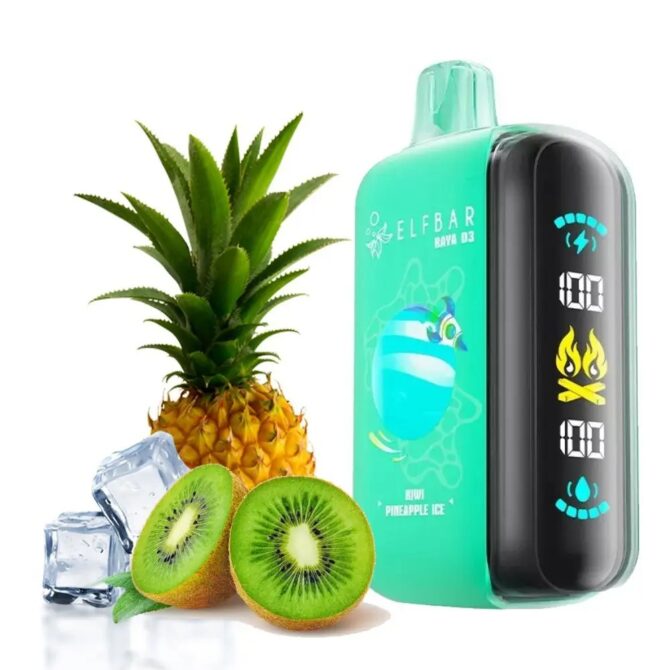
Connecting Your Smart E-Cigarette to a Mobile App: A User-Centric Guide
Smart e-cigarettes with companion apps offer enhanced control over vaping settings, usage tracking, and firmware updates. However, pairing these devices with a smartphone requires attention to compatibility, setup steps, and troubleshooting. This guide breaks down the process into actionable stages, ensuring a seamless connection without technical jargon.
Understanding App-Enabled Smart E-Cigarette Features
Before connecting your device, familiarize yourself with the functionalities an app typically provides. These features vary by manufacturer but often include:
Customizable Vaping Settings
Apps allow users to adjust wattage, voltage, or temperature directly from their phone, eliminating the need to manually tweak settings on the device. Some apps even offer preset modes for different vaping styles, such as cloud chasing or flavor-focused sessions. Advanced users can save multiple profiles for quick switching between configurations.
Usage Tracking and Analytics
Many apps monitor puff count, duration, and e-liquid consumption, helping users manage their habits. Data visualizations, like daily or weekly usage graphs, provide insights into vaping patterns. This feature is particularly useful for those trying to reduce nicotine intake or track progress toward quitting.
Firmware Updates and Device Management
Manufacturers release firmware updates to improve performance, fix bugs, or add new features. Apps simplify this process by notifying users of available updates and guiding them through installation. Additionally, apps may display battery health, coil resistance, and error codes, making it easier to diagnose issues without disassembling the device.
Pro Tip: Enable push notifications for your vaping app to stay informed about updates or alerts, such as low battery warnings or abnormal usage patterns.
Step-by-Step Connection Process Between Device and App
Pairing your smart e-cigarette with a mobile app involves several straightforward steps, but skipping even one can lead to connection failures.
1. Download and Install the Official App
- Search for the app using the manufacturer’s name in your smartphone’s app store (e.g., Google Play for Android or App Store for iOS). Avoid third-party apps claiming to support your device, as they may lack security features or compatibility.
- Ensure your phone’s operating system meets the app’s minimum requirements. Outdated software can cause crashes or connection issues.
2. Enable Bluetooth and Location Services
- Smart e-cigarettes rely on Bluetooth Low Energy (BLE) for communication. Activate Bluetooth in your phone’s settings and grant the app permission to use it.
- On Android devices, some apps also require location services to scan for nearby Bluetooth devices. This is a system-level restriction, not a tracking feature. Adjust permissions in your phone’s privacy settings if the app fails to detect the device.
3. Put the E-Cigarette into Pairing Mode
- Refer to the device’s manual for specific instructions, as activation methods vary. Common steps include:
- Pressing and holding the power button for 5–10 seconds until the LED blinks rapidly.
- Using a dedicated pairing button (if available) on the device.
- Inserting a charged battery or turning on the device while the app is open.
- Keep the e-cigarette within 3 feet of your phone during pairing to avoid signal interference.
4. Select the Device in the App
- Open the app and follow the on-screen prompts to search for available devices. Tap your e-cigarette’s name when it appears in the list.
- If prompted, enter a pairing code (usually “0000” or “1234”) or confirm a pop-up notification on your phone.
- Connection Check: Once paired, the app should display real-time data, such as battery level or current wattage. If the screen remains blank, restart both the device and the app.
Visual Aid: Some apps use animations or diagrams to guide users through pairing. If you’re unsure, look for a “Help” or “Tutorial” section within the app.
Resolving Common App Connection Issues
Even with careful setup, connectivity problems can arise. Here’s how to diagnose and fix frequent roadblocks.
Problem: App Fails to Detect the Device
- Possible Causes:
- Bluetooth is disabled or overloaded with other connections.
- The e-cigarette is out of battery or not in pairing mode.
- The app lacks necessary permissions (e.g., location on Android).
- Solutions:
- Close unnecessary apps using Bluetooth and restart the pairing process.
- Charge the e-cigarette fully and re-enter pairing mode.
- Verify app permissions in your phone’s settings and grant access if denied.
Problem: Connection Drops Intermittently
- Possible Causes:
- Physical obstructions (e.g., walls, metal objects) between the device and phone.
- Software glitches in the app or device firmware.
- Low battery levels on either the e-cigarette or phone.
- Solutions:
- Move closer to the device and remove obstacles.
- Update the app and device firmware to the latest versions.
- Charge both devices to at least 50% before reconnecting.
Problem: App Crashes or Freezes
- Possible Causes:
- Corrupted app data or cached files.
- Conflicts with other installed apps.
- Insufficient phone storage or RAM.
- Solutions:
- Clear the app’s cache and data in your phone’s settings (note: this may reset personalized settings).
- Uninstall and reinstall the app.
- Close background apps to free up resources.
Maintenance Tip: Regularly update both the app and device firmware to ensure compatibility and security. Manufacturers often patch known bugs in new releases.
Leveraging App Features for a Personalized Vaping Experience
Once connected, explore the app’s advanced features to tailor your vaping sessions.
Creating Custom Vaping Profiles
Many apps let users save multiple settings combinations (e.g., “Cloud Mode” at 80W with loose airflow or “Stealth Mode” at 30W with tight draw). Name each profile based on its purpose and switch between them effortlessly via the app.
Setting Usage Limits
For those monitoring nicotine intake, apps can impose daily or weekly puff limits. When reached, the device may lock temporarily or display a warning. Adjust these limits in the app’s “Settings” or “Preferences” section.
Integrating with Health Apps
Some apps sync with health platforms like Apple Health or Google Fit to log vaping data alongside physical activity or sleep patterns. This holistic view helps users understand how vaping fits into their overall lifestyle.
Experimentation Idea: Use the app’s analytics to identify peak vaping times. Schedule device lockouts during these periods to reduce dependency or create breaks in your routine.
By mastering the app connection process, users unlock a world of customization and control. Start with basic features like firmware updates and usage tracking, then gradually explore advanced settings as you become more comfortable with the technology.